Quickstart

This guide will teach you how to use the essential features of API Baker. We’ll start with the basics which you can start using immediately. It is recommended to follow along if you are new to API Baker.
After completing this Quickstart, you will have your first API service up and running and ready to share with anyone you would like to.
Requirements
An account in the SMCE Daskhub. If you need an account, please, contact our team we will be happy to assist you.
Lets get started
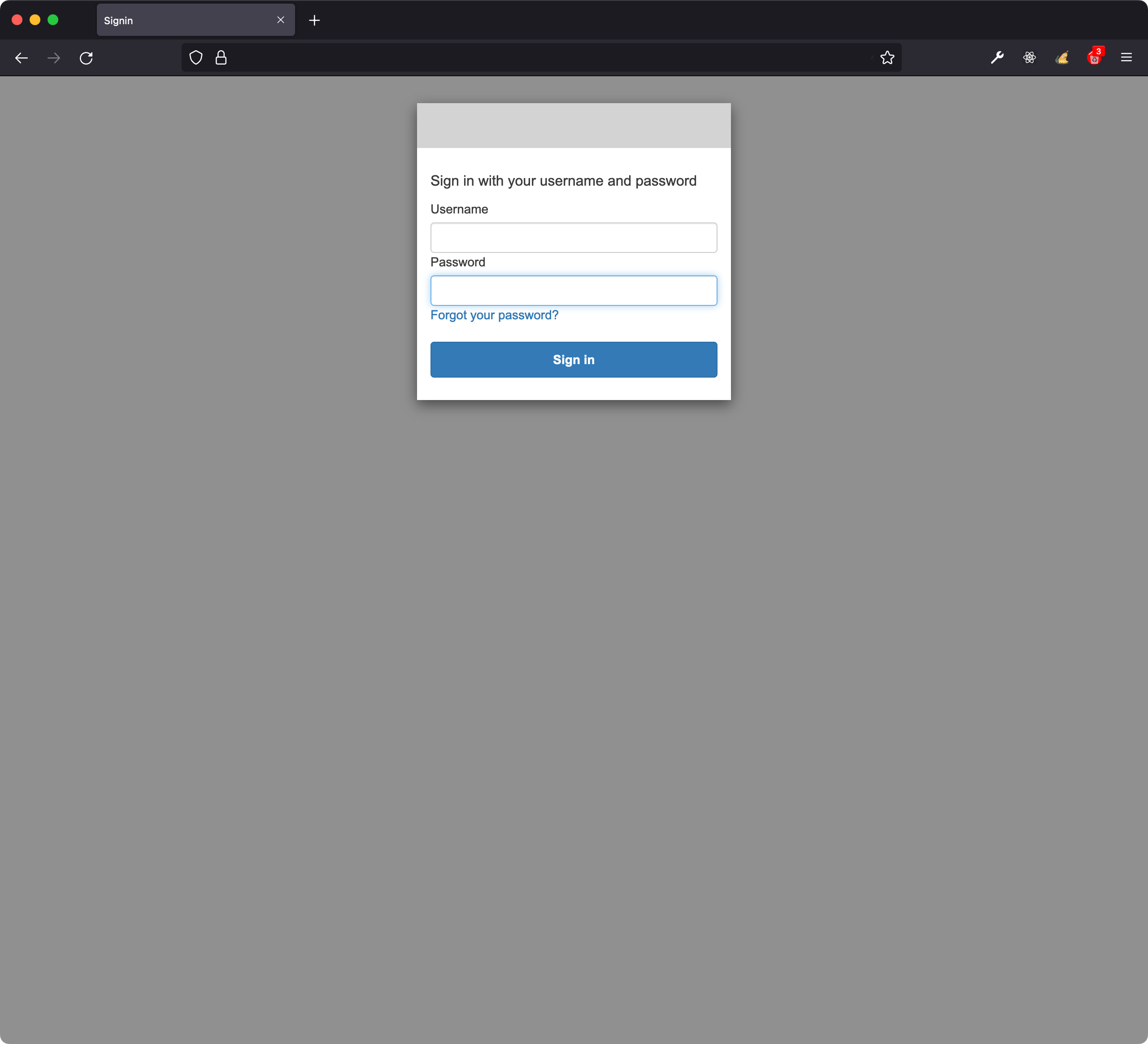
Login into SMCE’s Daskhub
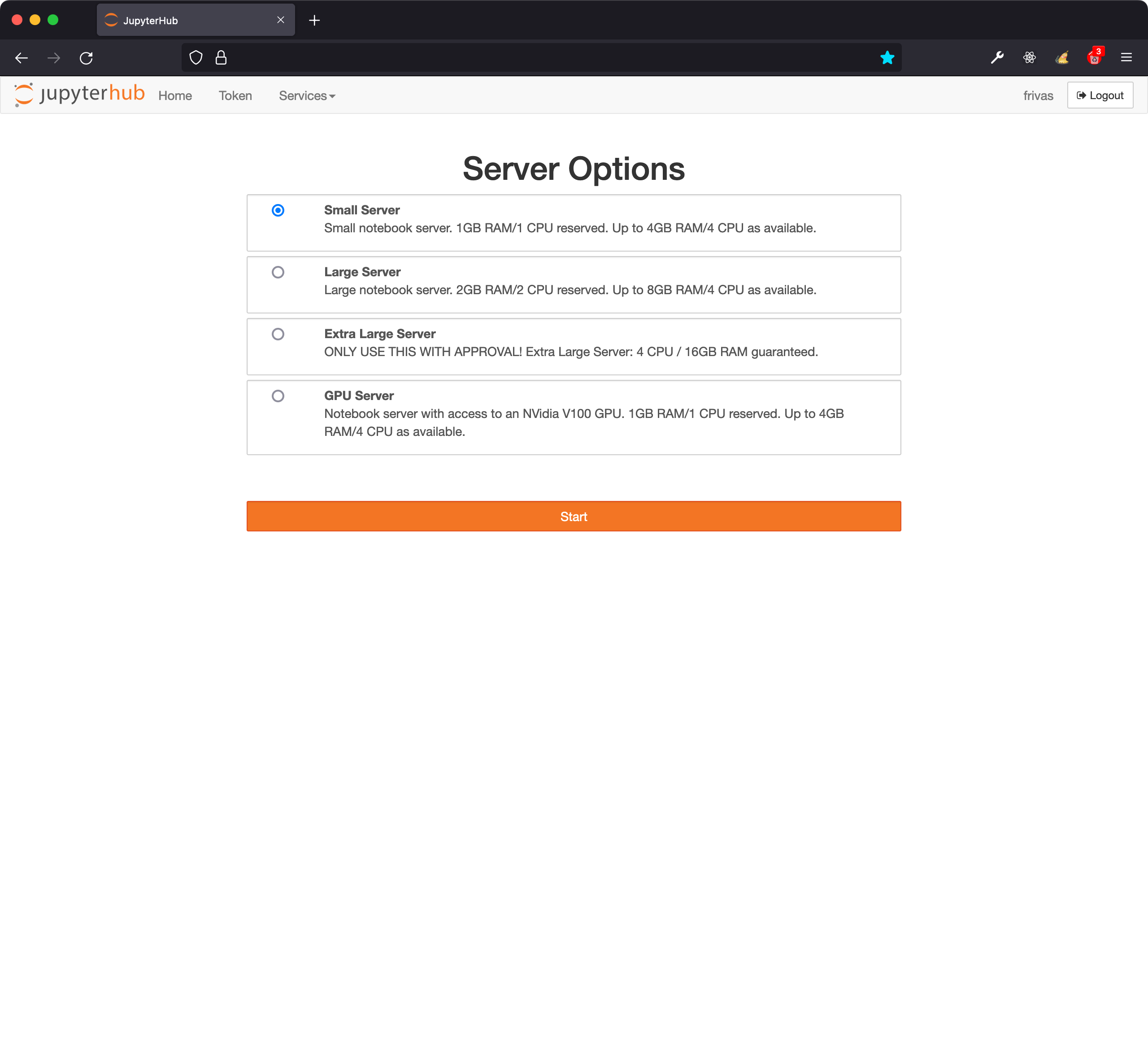
Spawn a new Lab instance
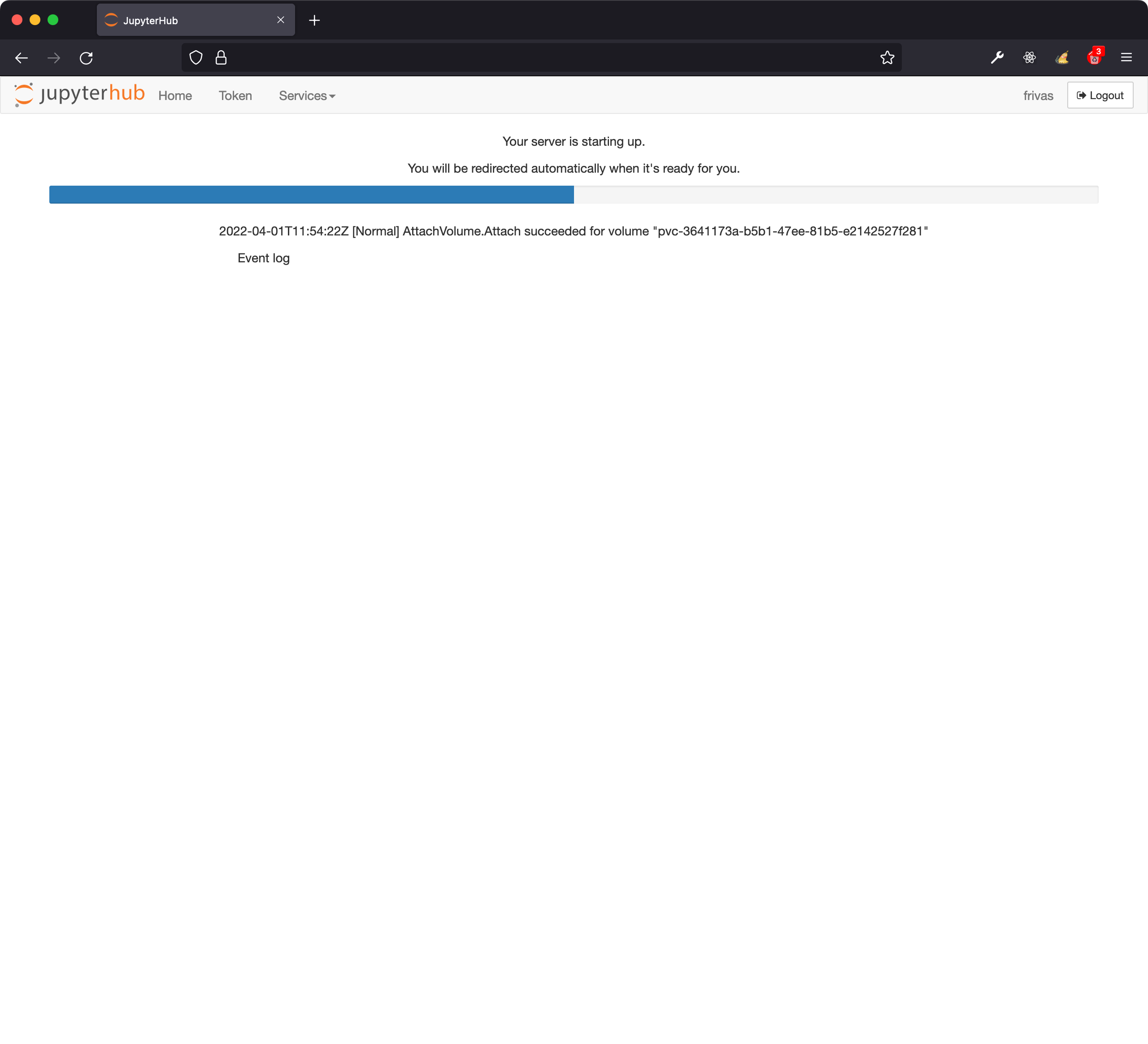
Spawning a new instance might take a few seconds
You will be inside your Lab instance in no time.
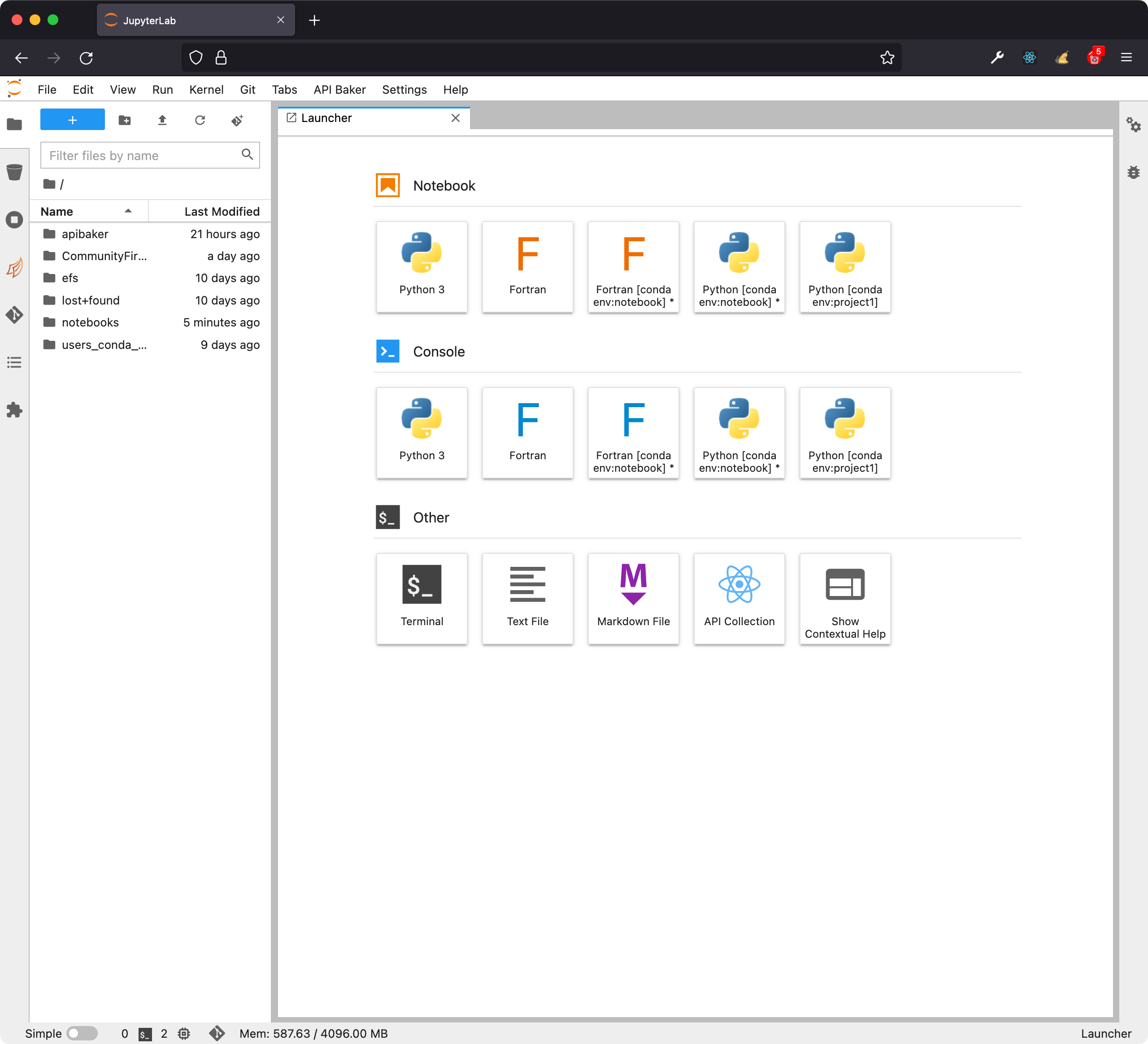
Create a Python notebook
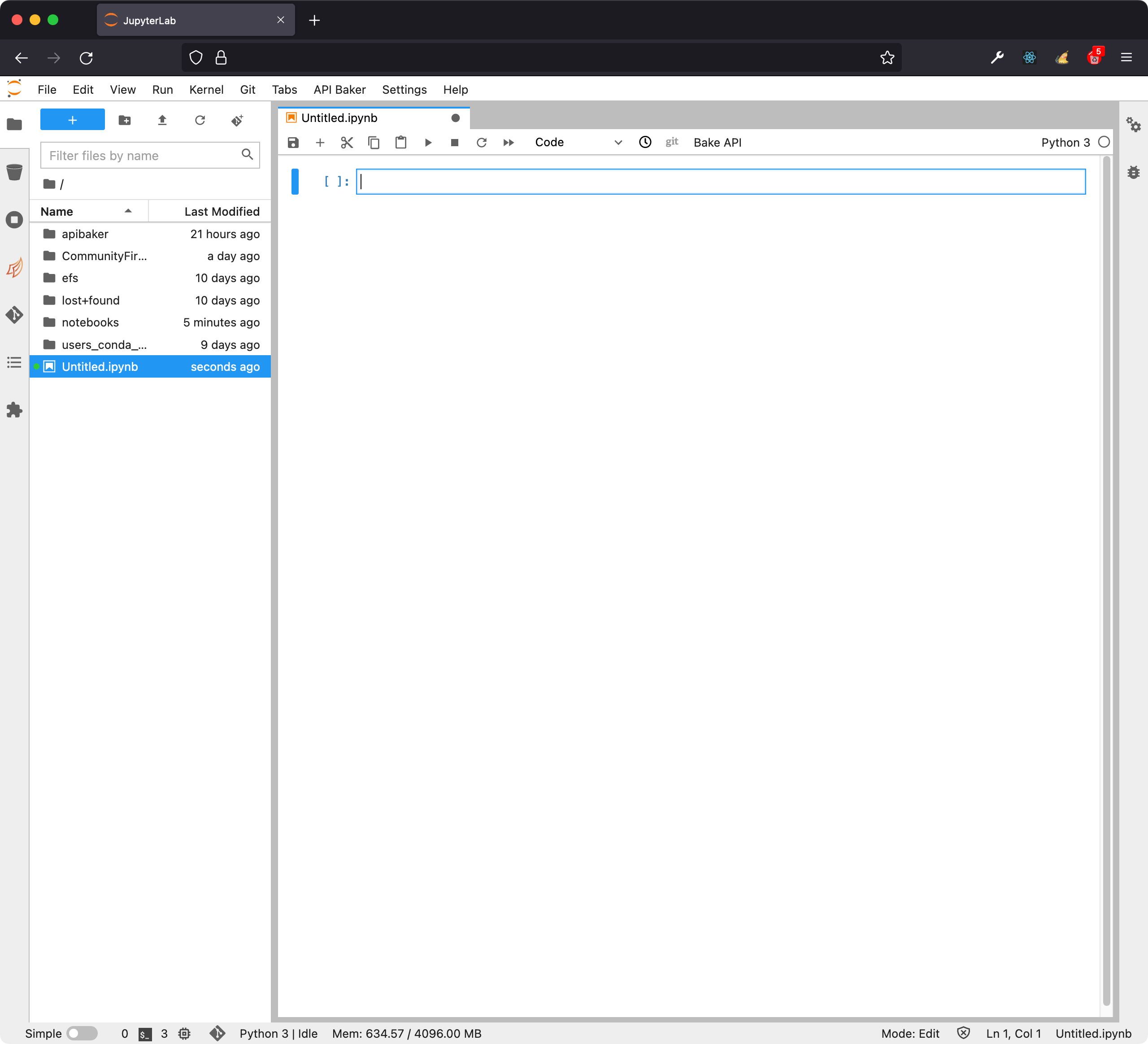
You can now write a Python function.
Note: Be aware that referencing (importing) functions from other Python Notebook or files is still a work in progress.
In this tutorial we will be using a very simple Python function that given an IP address returns information about it such as Country, City and ISP. We will turn this function into an API service using API Baker.
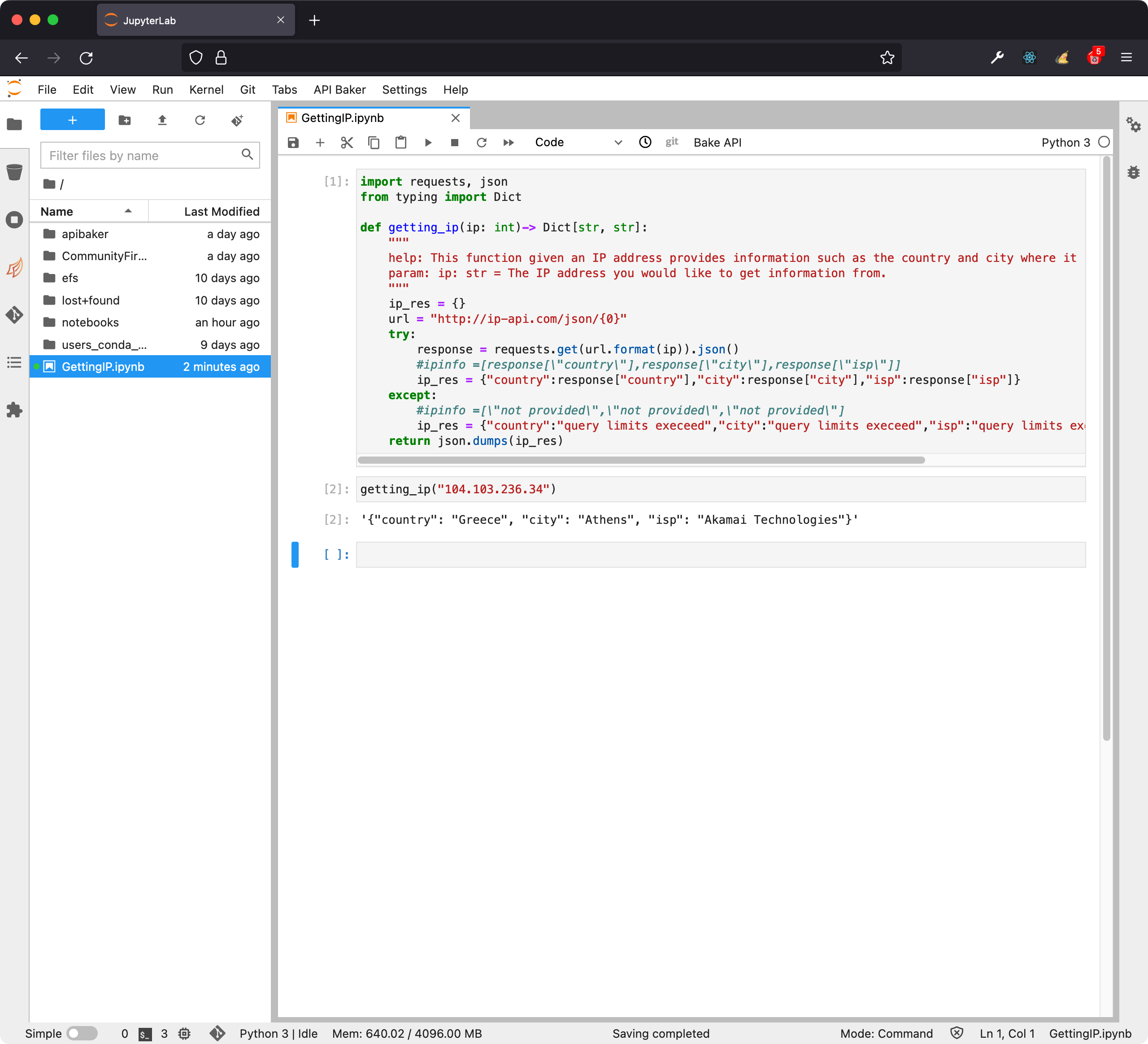
Baking an API. Notice there is a button in the notebook’s toolbar named “Bake API”, click on it.
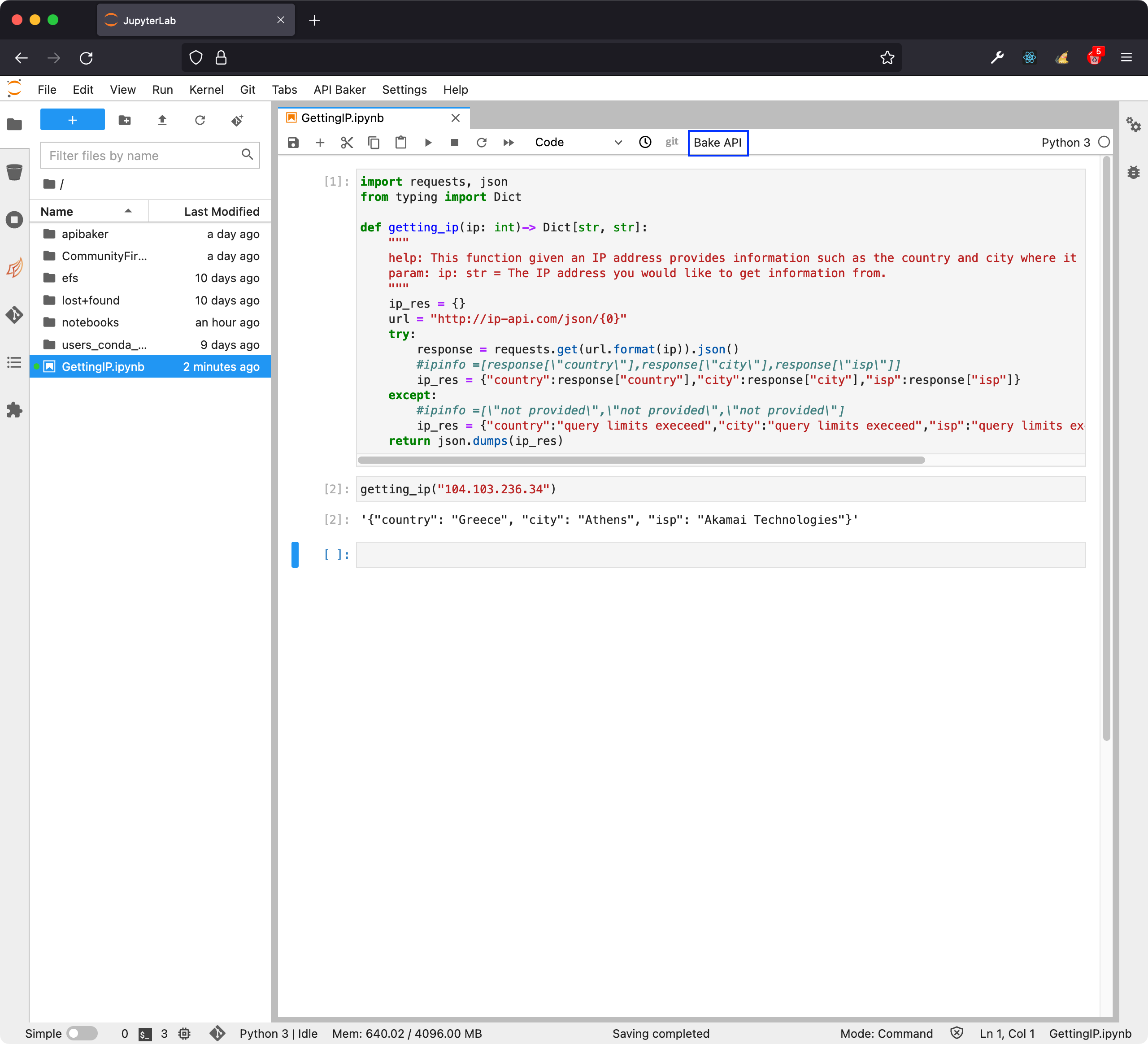
Clicking on Baker API will start the wizard that will prompt you to provide information. The first step is to choose a function from your notebook that you want it to use in your service. In our example notebook there is only one function
getting_ip. Once you have chosen a function, click on “Next”.
The next step is to specify a domain for your service. Note: We will release the support for custom domains in a later version of the API Baker. Please, insert any domain, for example,
test.comthen click on “Next”.
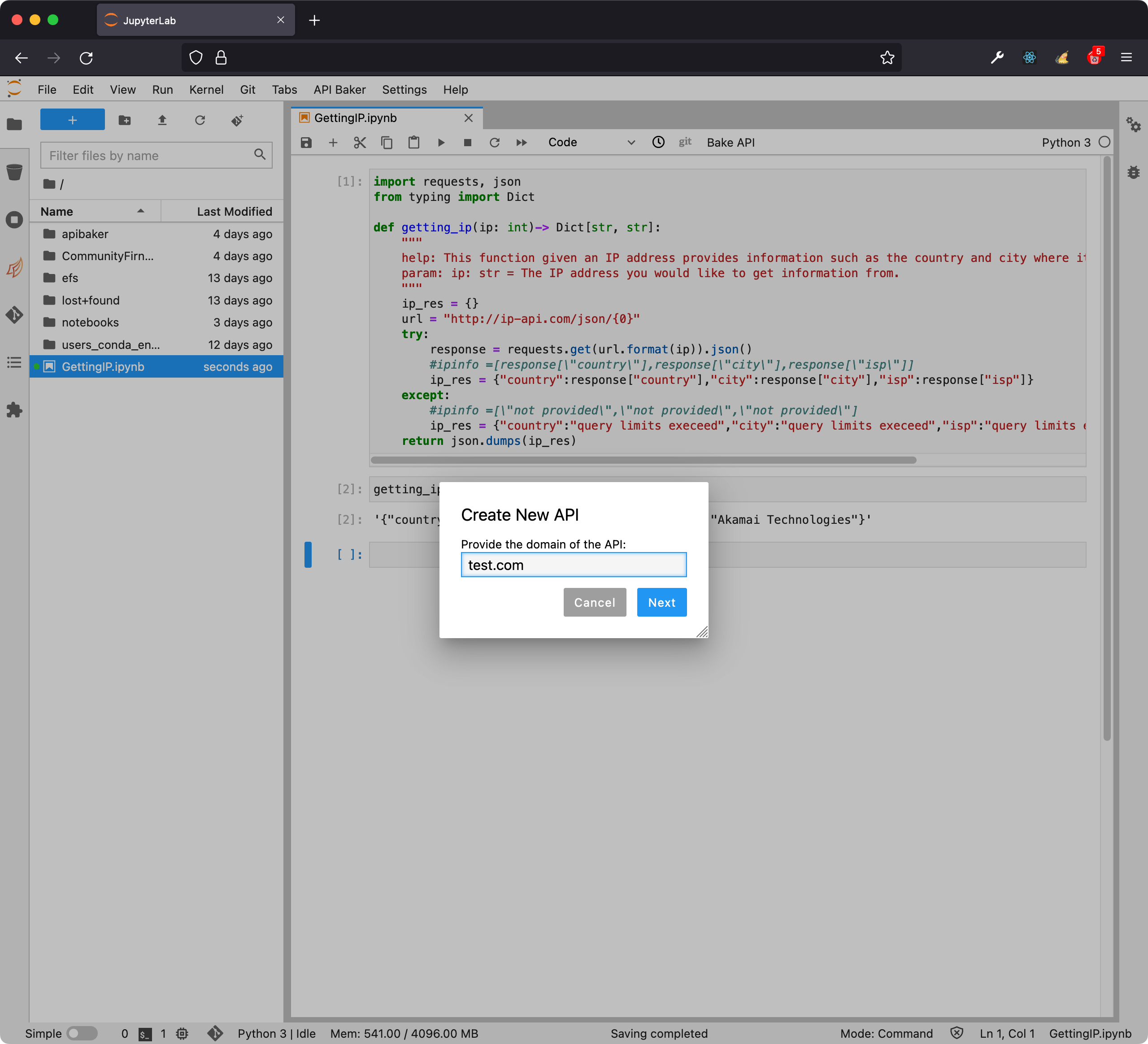
Once you have inserted the custom domain, you will be prompted to insert the version of the API. Note: We will release the support for versioning in a later release of the API Baker. Please, insert any version, for example
v1. Be aware that spaces and the support for special characters is limited. Click on “Create”.
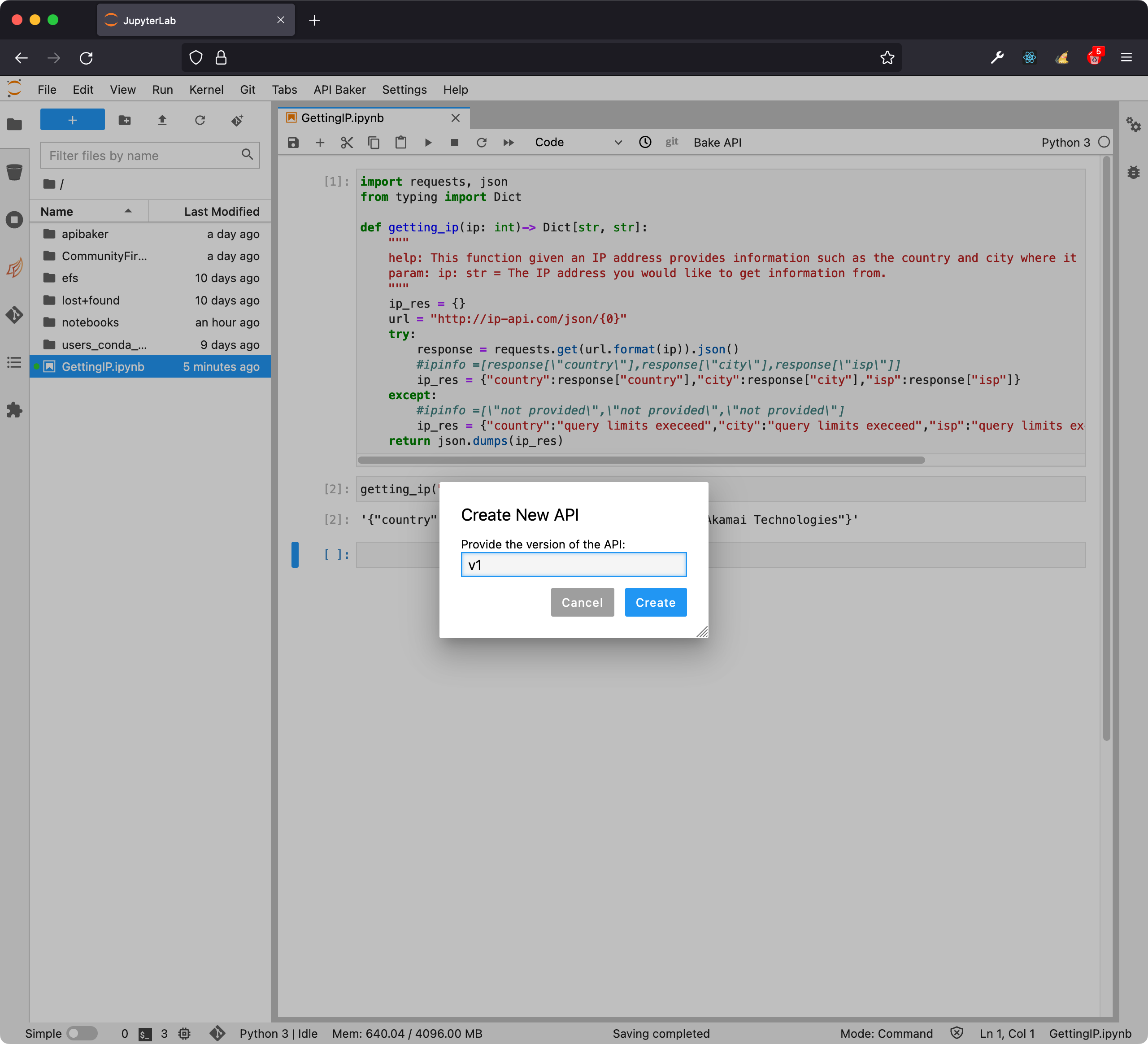
Now your function is being converted to an API service. This process takes around 10-15 minutes. The reason for this is related to all the services that are being created behind the scenes. API Baker will notify you when your API has a URL to access it. This doesn’t mean the service is ready. You can click on “Copy”, open a new browser tab and check if the service is ready.
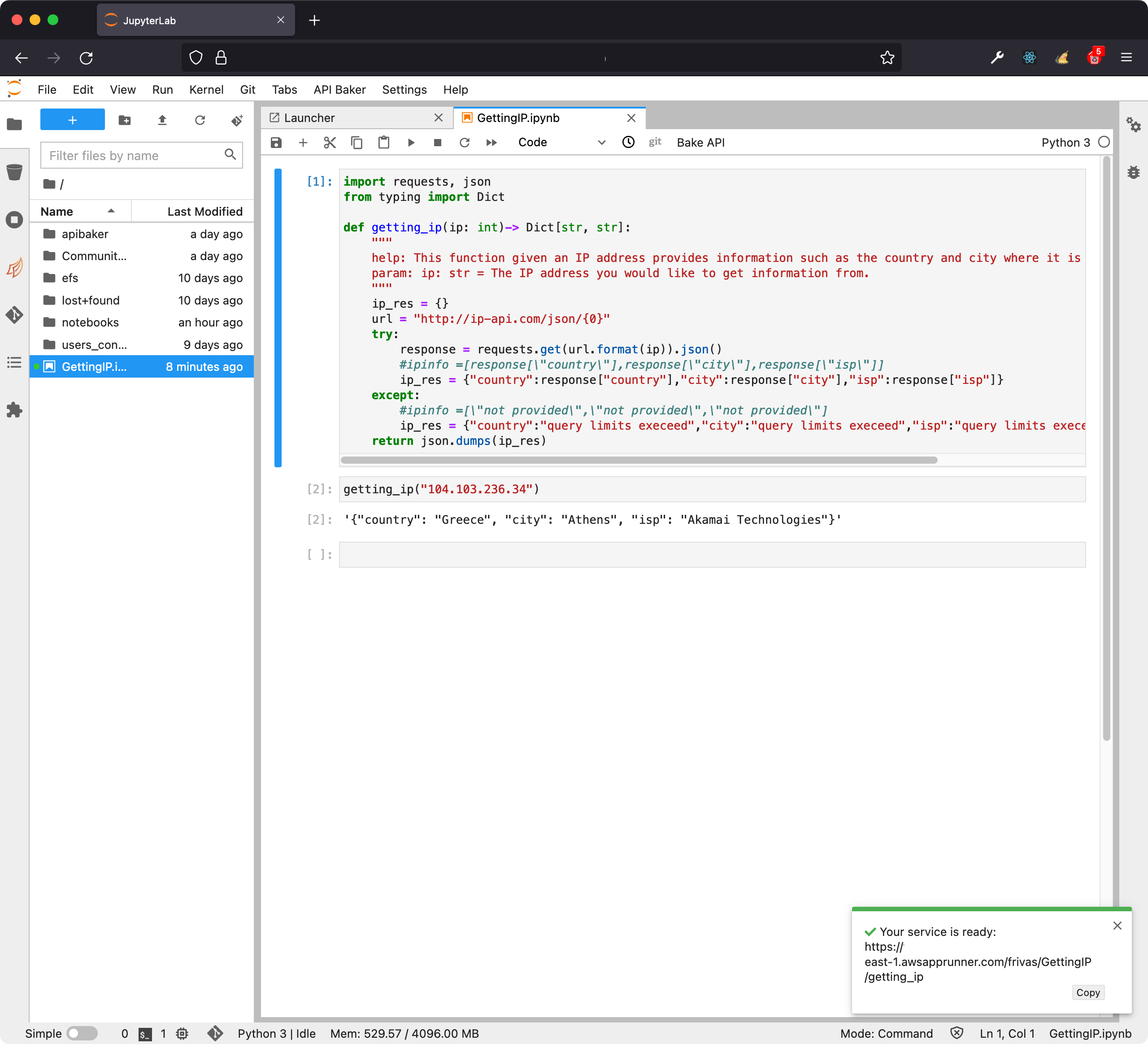
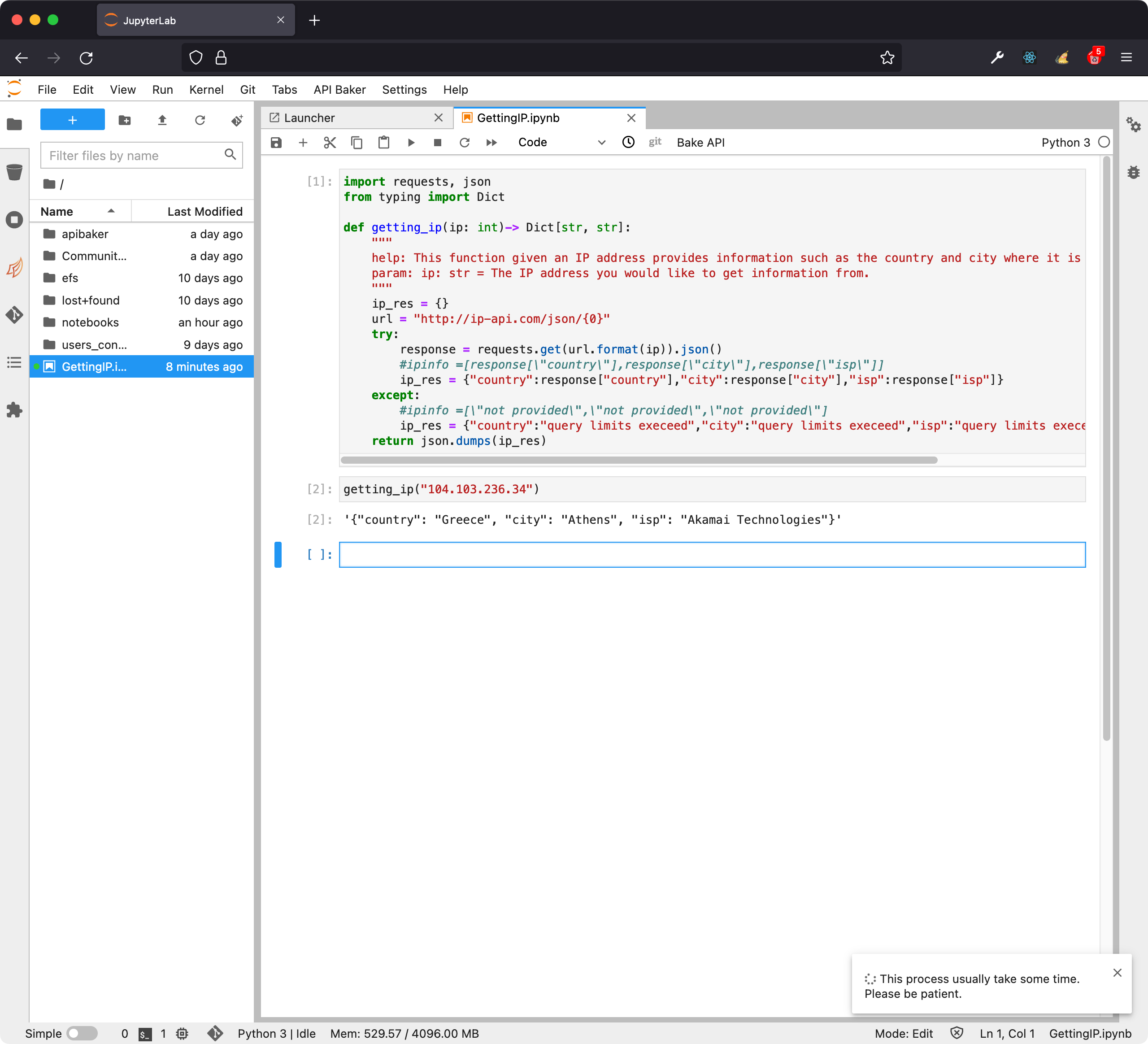
API Baker will send notifications until the process is ready.
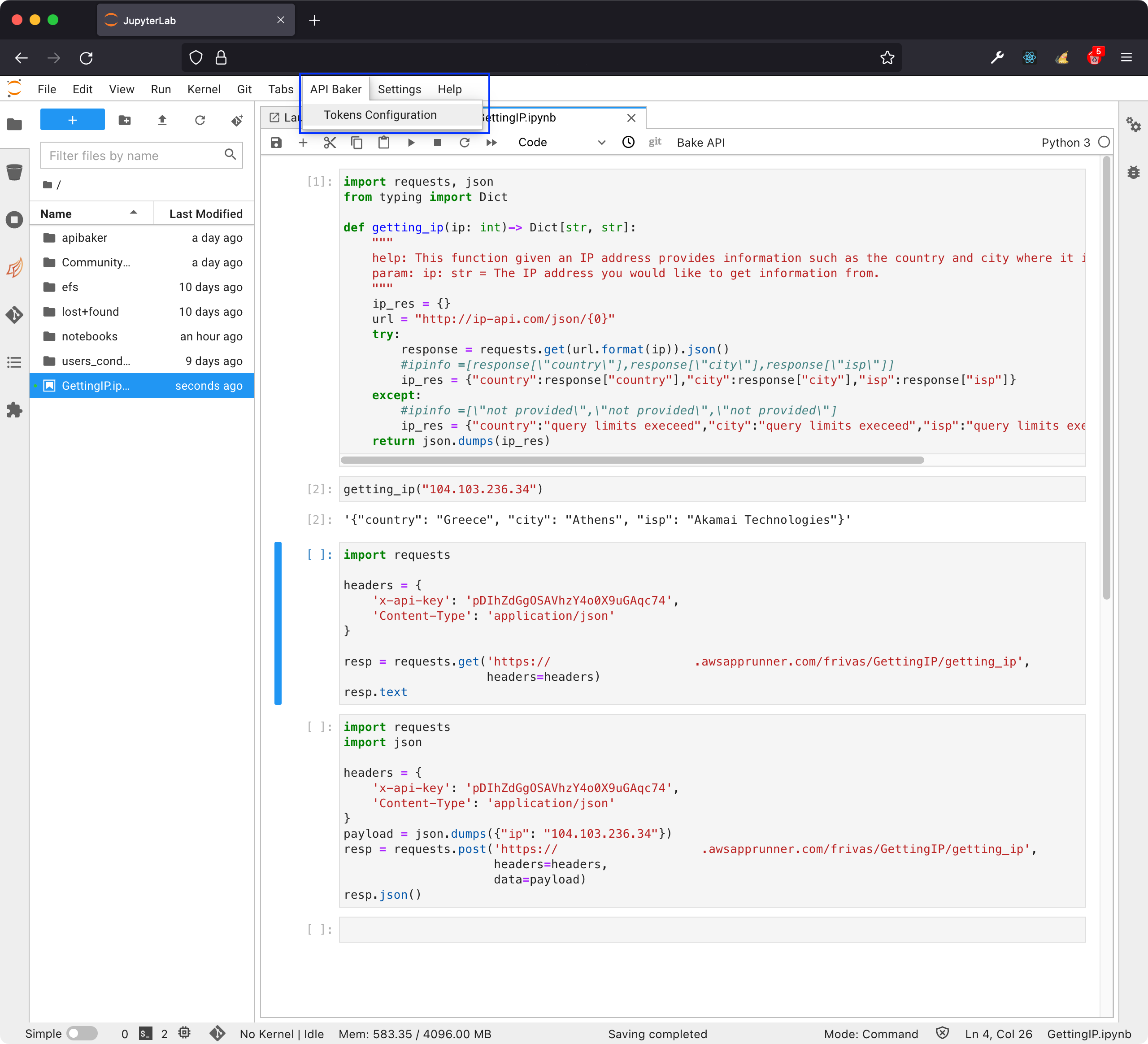
Once the service is ready you can get the Default token to interact with it. Alternatively you can create as many security tokens as you need. To get the Default token, click on the menu “API Baker” and then “Tokens Configuration”. This will show you a dialog where you will be able to select the function you want to get or create tokens for.
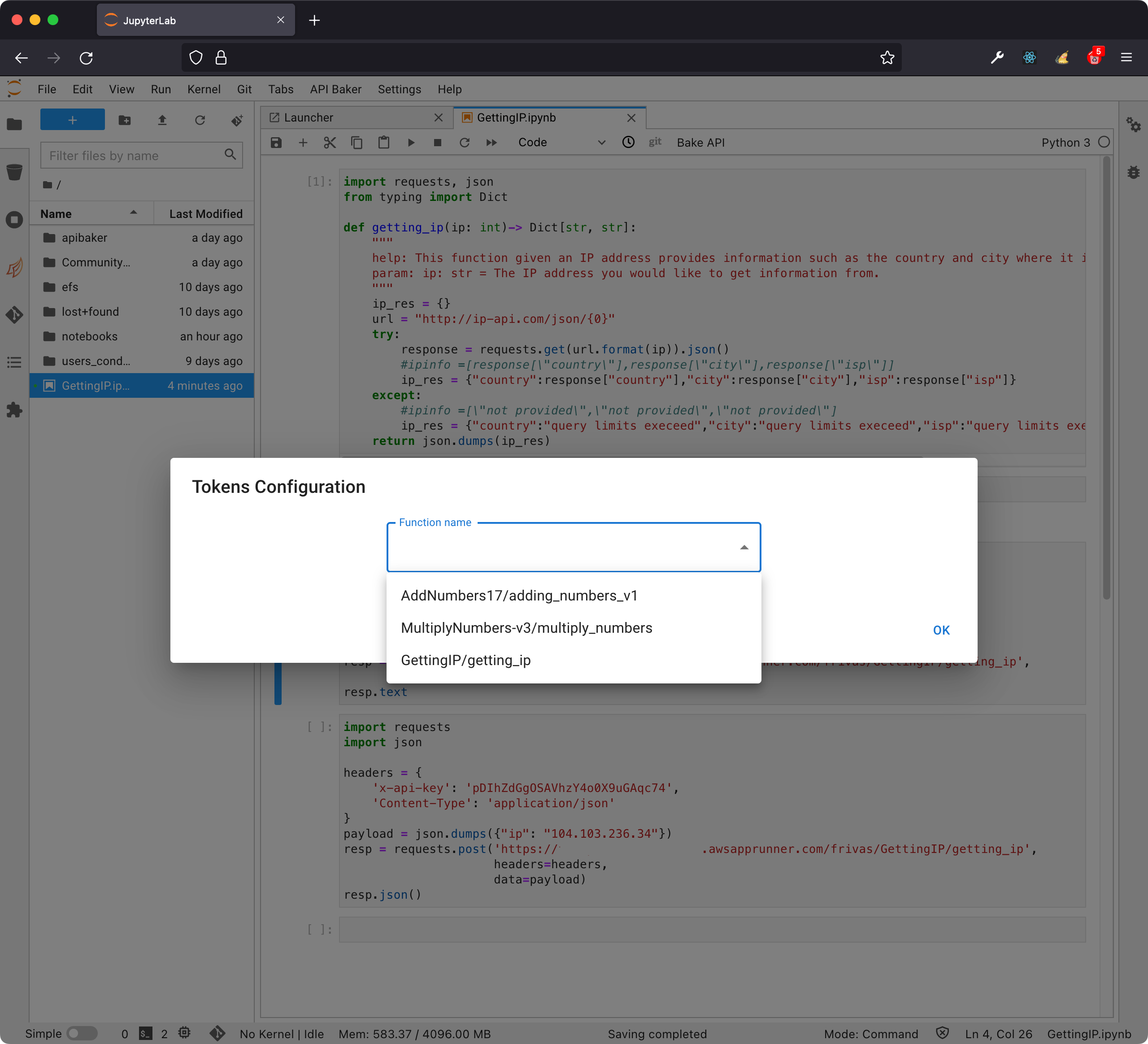
In the Tokens Configuration dialog, select the function. To avoid confusion with functions that have the same name, the name of the notebook they belong to is also shown. Select the function.
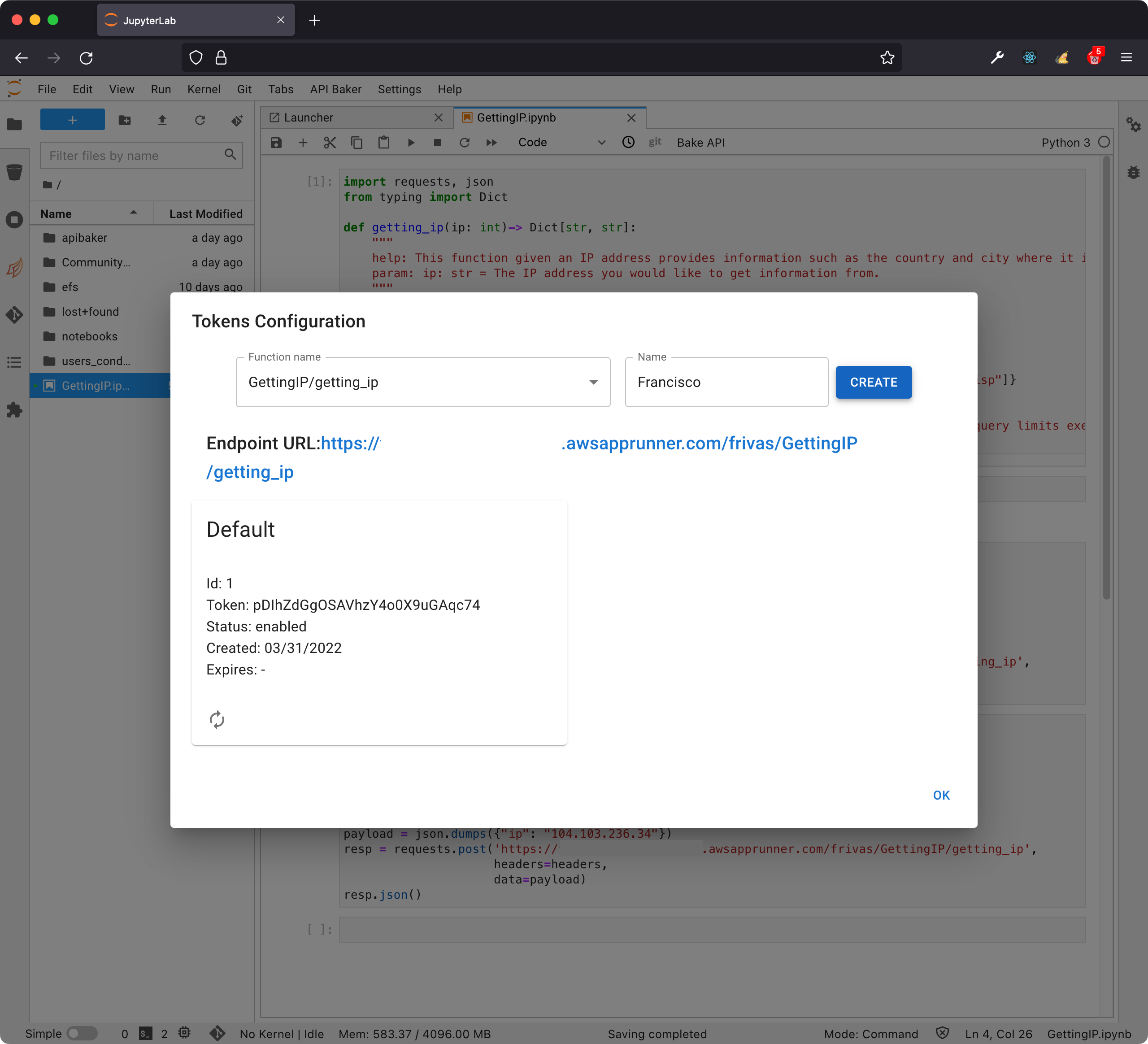
Once the function is selected you will see the Endpoint URL and also the Default token.
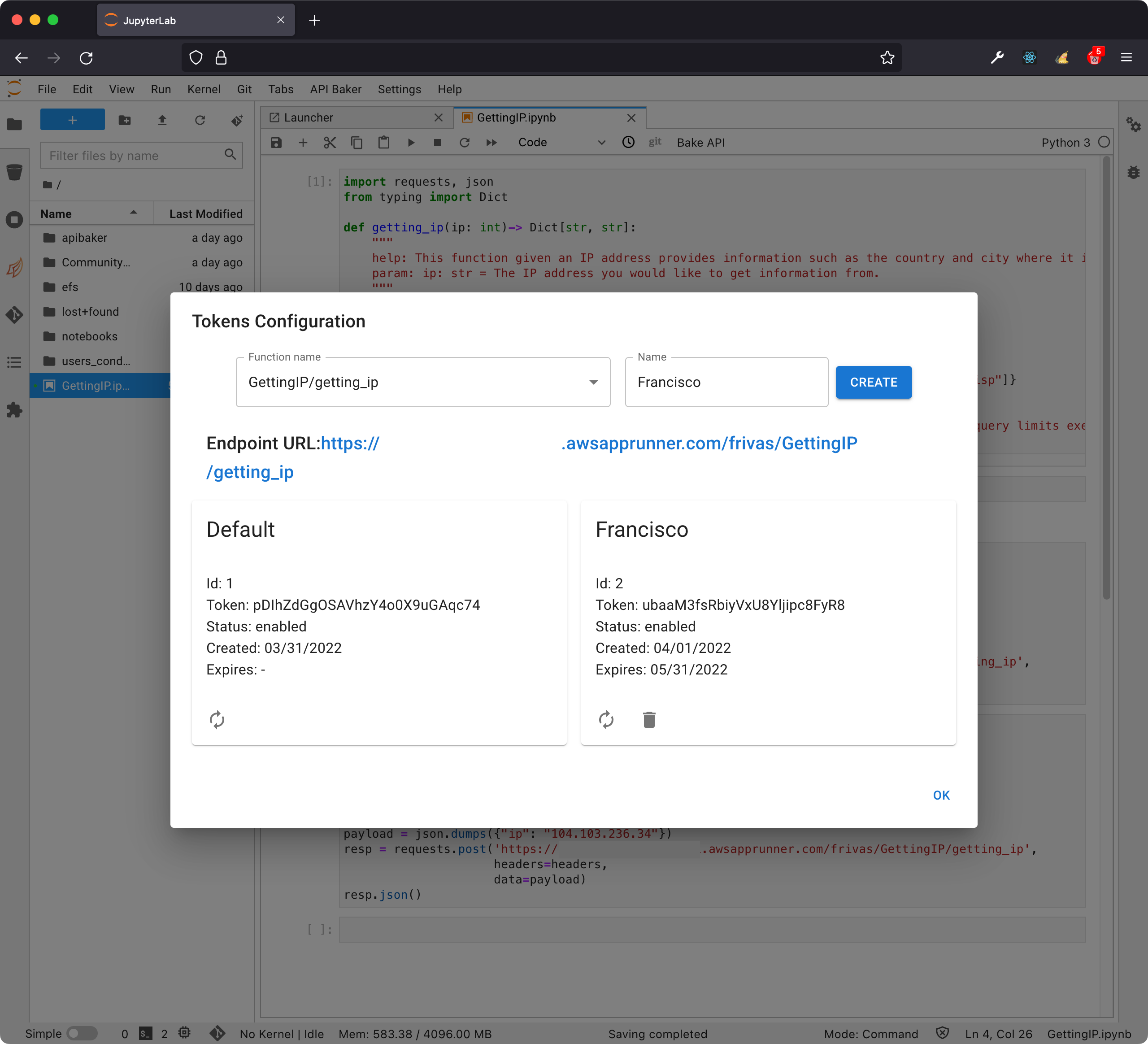
The Default token can’t be deleted however it can be refreshed. Our suggestion would be creating a new token, which you can do by assigning a name and then clicking on “Create”. Notice the new token can be refreshed and deleted. Per default tokens are valid for 60 days. Tokens are refreshed right away and the previous token is no longer valid and can’t be recovered. The same happens with deleted tokens.
Test you API service in your notebook using
requestsPython library. You can also use Postman or any other REST client.
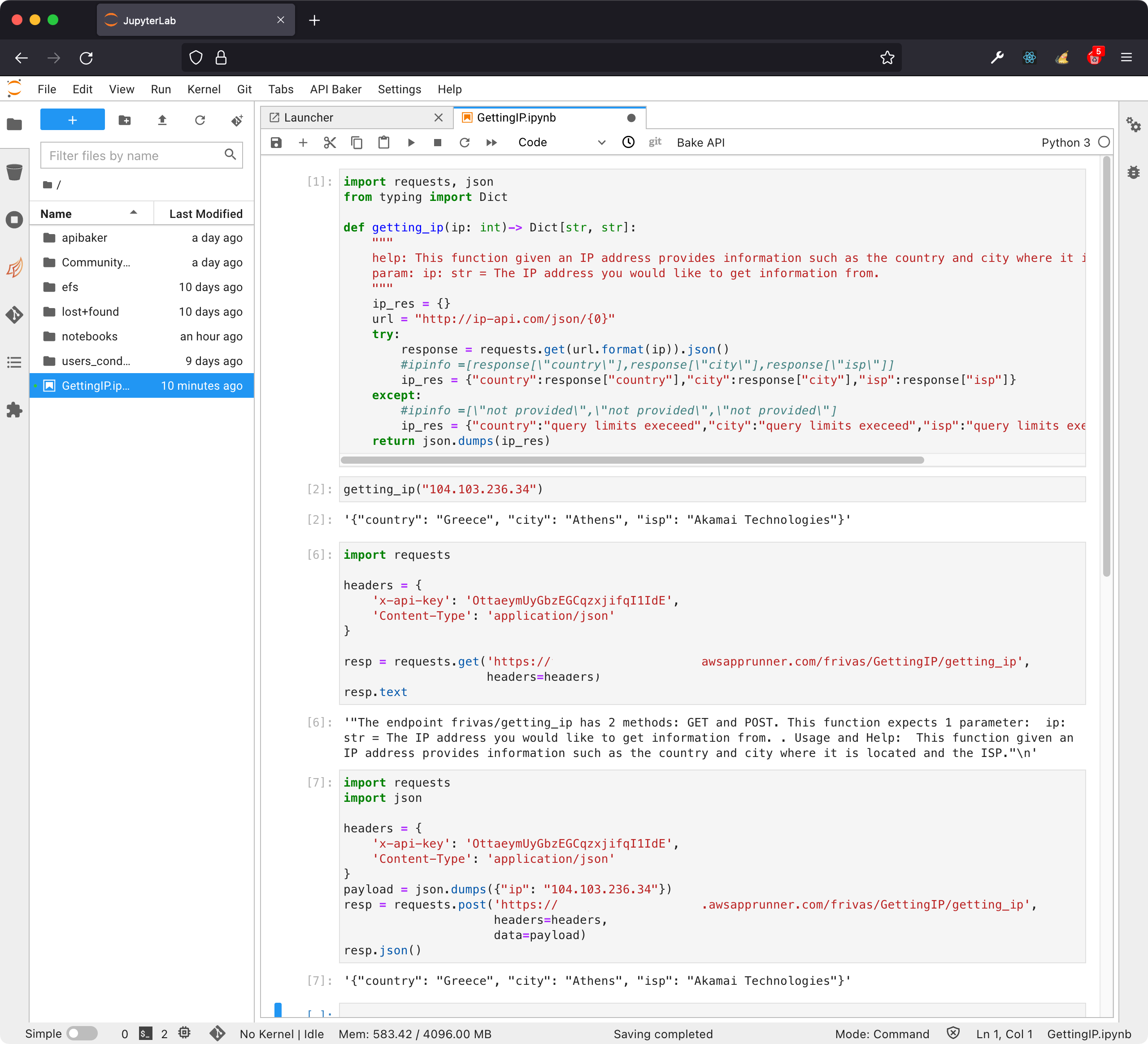
Code snippets
GET Request
import requests

headers = {
  'x-api-key': '<token>',
  'Content-Type': 'application/json'
}

resp = requests.get('<url>', headers=headers)
resp.text # resp.json()POST Request
import requests
import json

headers = {
  'x-api-key': '<token>',
  'Content-Type': 'application/json'
}

payload = json.dumps({'var1': 'value1', 'var2': 'value2'})

resp = requests.post('<url>', headers=headers, data=payload)
resp.text # resp.json()